
This article explains how to save your changes in the Work Plan List / grid view using the Save  button, if enabled.
After making changes to the Work Plan List view, you must use the Save button to save your updates.
Important
If you navigate away from the Work Plan List view without saving, your changes will be lost.
When you make any changes to the Work Plan, you will receive a notification at the top of the screen notifying you to save your changes:
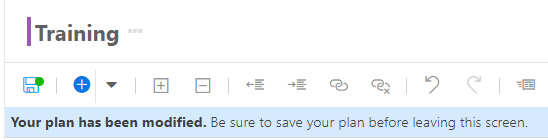
Click Save to save your changes. The notification will clear until more changes are made.
It is best practice to save often as you update your work plan.
Comments
0 comments
Please sign in to leave a comment.